Showing posts with label app smashing. Show all posts

Friday, April 15, 2016

Technology Tuesday: Shape Poems

I have always loved Shape Poems but found it so difficult to form the words in the correct shape.  I started looking for an app that might do it for me and came up with something close.

With 2nd grade this week, I read them some shape poems from Come to My Party by Heidi Roemer.

We talked about how these poems rhymed, but not all poems do.  We talked about how poems describe things and can be about any topic and then I had them open the Read, Write Think Theme Poem app on the iPads.  

This app has different themes to choose from.  We picked Nature poems.  Students wrote a poem about the sun, flowers, rain, trees, moon, sun, leaves or fish.  Then before we saved it, we copied the words of the poem using the select all and then copy feature.

We then opened the website Tagul.  
WARNING: This website requires a login.  I used my library google account, but I went in ahead of time and on each iPad logged in and created a shortcut on the home screen of the iPad to make it easy for the 2nd graders during the lesson.  There are also a bunch of different features on this website, so I could suggest playing around with it yourself before jumping in and doing it with a class.

We created a new cloud and imported our words that we had copied using the paste feature,  Then click VISUALIZE and wal-ah our words were in the shape of a... cloud.  We then looked at the different shapes available on the website and picked one that went with out poem.  Tap visualize again and then poof... our words were inside a shape that matched the poem. 


You'll notice the words in the colored shape poems are not in order of the poem but we were still excited about what we had done!   


Tuesday, March 15, 2016

Technology Tues: Kinder Shadow Puppets

My kinder classes have each been researching a different animal in class and this year, instead of doing a different research project in the library, we decided to use their notes from the class to make videos in Shadow Puppet on the iPads.
I am not really sure why this app is called Shadow Puppet because there are no shadows and no puppets involved.  It is a video creating app using slides.  I have used 30 Hands with kinder before but wanted to try this because text can be written on the slides and there is a web image search within the app.  

We did this lesson over 4-5 thirty minute sessions.  In the first session, we made title slides in PicCollage.  I had chosen 4 pictures of each animal and loaded them onto the camera rolls of the iPads. We opened PicCollage, chose one of the pictures, added the name of the animal in a text box and then the student's name in another text box.  The student liked being able to change the color and the font of the writing in PicCollage.  Then they saved the picture to the camera roll. 

The next 3-4 sessions were for making the slides with the information they had been researching in class: what do they eat, look like, do and where do they live?  Each time I gave the student back the same iPad they originally had since all the work was saved on that iPad.  Each time we started by reviewing their class notes for one of the questions.  Then we opened Shadow Puppet, searched for a picture that matched our topic, wrote a sentence on the slide and then saved.  


The final session was for recording.  The teacher and I each called students one-by one to record their videos.  I think they turned out super cute.  


One thing that I did not like was the way the text broke in between words.  For example, in all the videos where we typed "penguins" the "s" is on the next line instead of making the word smaller so that it fit.  That might be something that is easily fixed but I have not figured it out yet.

All in all this was a fun project to do with the kinder kids.  

Tuesday, February 9, 2016

Technology Tuesday: Virtual Valentines

Here's a fun connecting opportunity that I saw on Twitter this year and sent to my teachers.


This group pairs up classes to exchange virtual valentines across the miles and learn something on the way.  

Here is a blog post from one of my 5th grade teachers that participated in the program.  


Wednesday, February 3, 2016

Technology Tuesday: Augmented Reality + Writing

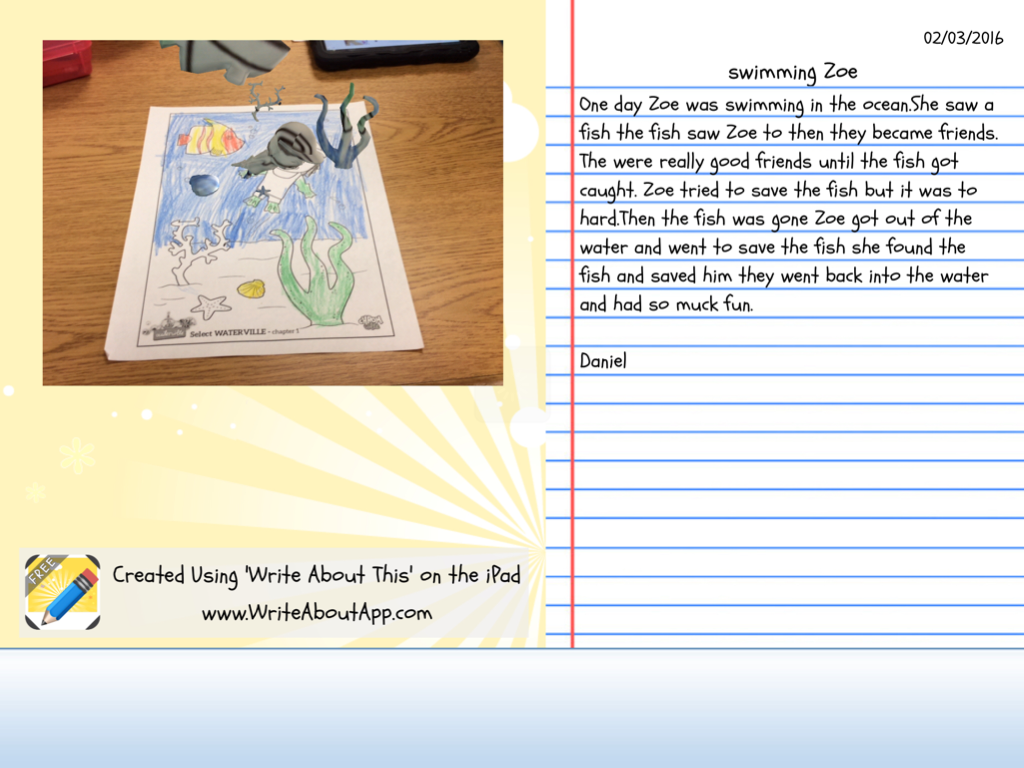
I have been wanting to use Augmented Reality in a lesson for a while and finally figured out a way to do it.  I am using a Chromville coloring page to inspire writing in my 2nd graders.  Chromville is a website and an app.  Print the coloring pages from the website and thenuse the app to make them "come to life".

I printed off a page from the character, Zoe's stash.  I gave the students about 10-15 minutes to color and told them to be thinking about a story that could go along with the picture of Zoe swimming. 

When they finished coloring, we used the iPads and the Chromville app to make the picture in an augmented reality picture of Zoe swimming and diving with the fish.

The students are super excited to see the picture come alive.  It is always so fun to see their reactions.  The hardest part is keeping the iPad still for the 3 seconds it takes for the camera to read the picture. 
Within the app there is a camera button so the students took a picture of their 3D picture.  Then we opened the Write About This App (we used the free version which only allows you save one story, but there is a paid version where you can save multiple times).
This app allows you to import a picture and then write a story to go along with it.  The students put imported their picture and began writing.
When they finished, the can save it to the gallery and email or save it to the camera roll.  THis was a fun way to change up writing.  I think using the Augmented Reality picture helped to engage them a little more than just a promt.  


Tuesday, November 10, 2015

Technology Tuesday: Google Maps

Last week, Lisa Johnson (@TechChef4U) presented to our librarians at a district inservice.  She talked about Augmented Reality and gave some great ideas.  One being using the Flyover in Apple Map Tours to give students a virtual look at different cities.

While I was exploring that I had the idea for 2nd graders to appsmash the maps with Doodle Buddy while they are learning about map keys this week.  

In the map app, we typed in the address of our school.  We looked at the satellite view so that we could see different things like trees, the track, the playground, houses and cars. Students took a screen shot of the map and then opened it in Doodle Buddy and used the brush and text feature to create a key for their map.  


Tuesday, October 14, 2014

Tecnology Tuesday: TinkaMaker and Skitch

Last week I posted about an activity I did with 1st grade using Tinkamaker and ChatterPixKid for our upcoming Kate Klise visit.  The kids had so much fun with TinkaMaker I decided to use it again with 2nd grade.  The lesson was the same up until after they had created the picture of their "meanest mother" and saved it to the camera roll.  Then we opened Skitch
and wrote our sentence on the picture instead of recording it.  We talked about how our moms weren't really the meanest mothers on Earth, but sometimes they make us do something or won't let us do something and we feel a little angry.  But just like Little Rabbit, we always got to sleep loving them.  I loved seeing the difference between what the 1st graders and 2nd graders though was "mean" and how much more elaborate the 2nd graders thoughts were. 


Tuesday, October 7, 2014

Technology Tuesday: TinkaMaker and ChatterPixKids

We are so excited about our Kate Klise visit coming up in November! Today with First Grade I read her book Little Rabbit and the Meanest Mother on Earth.
Before the story, we predicted why she could be the "meanest mother on earth".  After the story, the students completed the sentence My mom is the meanest mom when she....  Then on the iPad we used the app TinkaMaker 

TinkaMaker
to create what our meanest mother looks like.  The kids had a great time adding wild hair, different shaped heads and ears and experimenting with different eyes and mouths to make her look mean.  
We took screen shots of our creations (that was exciting with first graders) and then opened the ChatterPixKid app.
ChatterPixKids
Here we were able to take our meanest mother picture, add a mouth and record our sentence.  


Both of these apps are free and tons of fun to use by themselves, but put them together and watch what happens.


Wednesday, January 22, 2014

Technology Tuesday: Graphic Novels (Finally!)

My third graders do a big research unit on forces of nature right when we come back from winter break. In the past, each class has researched a different force of nature ie hurricane, tsunami, tornado, etc and then each group within the class writes an article for the class newspaper devoted to that force of nature. Well, this year, since I now have iPads in the library, I was talking with a colleague on day and we came up with he idea of having the kids do a whole lot of app smashing and make a graphic novel! It was a really cool idea and we played and played with it, wrote out directions, and tested the directions and tested it some more and played some until we were sure it was fool proof. Ha - that is until one of the apps apparently updated and part of the directions didn't work and then scribble press wouldn't upload the finished books and we had a fire drill and 2 unplanned assemblies and I had to make a plan B and a plan C.  Lucky for me I have awesome 3rd grade teachers who just go with it!

So this is what we did.  The kids researched their force of nature and their specific question in order to make their page of the class graphic novel.  Then they used a story board to plan out the pages/s to give information about their group's specific question.  They then took one or two pictures of each person in the their group and found some backgrounds of their topic in SIRS Discoverer. Then in Puppet Pals they made characters out of themselves and put themselves in a scene using the various backgrounds they chose and took screen shots. Then here's where it gets interesting... In all of our testing the screen shots from puppet pals we put into the StoryMe app and they speech bubbles we added.  In real life, with 21 kids, the StoryMe app would not find the pictures of the kids on top of the background in the camera roll. It would see the individual pics of the kids and the pics of the background but not he screen shot of the kids ON the back ground.  Insert Plan B... 

The kids make the frame of their pages in Strip Design and save those to the camera roll and then insert that page into Story Me to add the speech bubbles. Story Me is a really cool app that cartoonizes pictures. Then they email it to me and I put the whole book together using the PAID app Scribble Press and then we share 7books on the iPads in the 7 classrooms so the kids can read the other classes books and answer questions during their station work. Insert Plan C...

The PAID Scribble Press app would not upload the book all the way for some reason. So after several failed attempts I tried using the FREe app Book Press and voila it worked beautifully.

Here are a few pages from our tornado book


I might be a little biased, but I think they turned out great and will definitely be doing it again.  What kind of products do your students create for research?

Tuesday, December 10, 2013

Technology Tuesday: Long Ago and Today

In first grade this week, we are researching how communication, transportation and recreation have changed over time.  We are using books and PebbleGo to find our information.  We split up into 2 groups.  One goes with the teacher to look at the book and one goes with me to look at PebbleGo and then we switch.  After the students have seen both and taken notes, they write a sentence telling how people traveled long ago and then how people travel today.  Then they used the Super Duper StoryMaker app on the ipad to create a picture.

I emailed the picture to myself and then used Scribble Press to put a book together.  
I have 6 first grades so 2 classes will research transportation, 2 communication, and 2 recreation.  Then we are going to share the Scribble Press books either through the website or the teachers can load the books onto iBooks on their ipads for the students to look at during station work.  Here is one of our finished books.  
The only thing that I didn't like about mashing these two apps was that StoryMaker can only be done as a landscape picture and Scribble Press only in portrait.  That is why the pictures only take up the middle of the page.

(I promise I do technology with the other grades, I just see 1st grade more than the others.  I will have other grade levels'work after the new year.)

What book makers do you use?