Showing posts with label 5th grade. Show all posts

Sunday, March 31, 2019

What I Learned From Having 5th Graders Do a Digital Breakout

I created (yes, created! From scratch) a digital breakout for my 5th graders to review some skills before their state assessment.  It was a great two days of learning in the library for me as well as for them.  Here are some things I learned...

1.  Sometimes the "smartest" kids aren't the most capable of thinking differently.  The students that we thought would be able to solve the puzzles or figure out the clues to get to the actual math problems were the ones that were at a loss as to what to do.  

2.  Some 5th graders don't like to do work.  Even though we told them that this was a math review and that they had to solve math problems to unlock the locks, some groups spent a lot of time trying to guess the answer to the locks instead of just working the math problems. 

3.  Even though we only had a handful of groups get all of the locks open, most of the students seemed to enjoy themselves and all were introduced to a new and engaging way to review for the upcoming test.  

I will definitely do another breakout with these kids this year.  Now that they have been exposed to one, I think many more will be successful the next time. 


Monday, June 6, 2016

A Real World 3D Print: Part 2

So when Part 1 left off, our technology coordinator and I had spent 3 hours trying out different processes to print Braille keychains with students.  At first, we thought that each one could make a letter of the alphabet to start and then they could use each other's letters to make the key chains. Too involved! We finally decided that the easiest thing would be to have them copy the original braille cell I made and remove the dots, just as I did.

I had spoken to a 5th grade teacher about doing it with her math class of about 20 kids.  She was super excited.  The kids came to the library and I had Michelle explain a little bit about what Ivan had been going through.


She also brought some Braille shapes on paper so the students could feel what it was like.  She told the students that Ivan was at a school in Austin learning how to adapt to being blind. I then explained about the original keychain that I had made and how we wanted to make more for the other students at the school.

We brainstormed a list of positive, encouraging words that we could put on the keychains (I forgot to take a picture of that).  Word like: smile, hope, joy, just do it, cheerful, love, shine, etc.  The students picked a word and planned out what the word would look like in Braille.


Once the teacher or I checked their Braille, they could begin using Tinkercad to design the keychain.


When they were finished, the teacher or I checked their work to maker sure the keychain was the right thickness, no shapes were poking through the bottom, the hole went all the way through and that the dots were raised to the right height.  The students then wrote the title of their design on a list so I could begin printing them.  


After they were printed, I sent them home with Michelle one weekend so Ivan could "proof-read" them for us to maker sure the keychain said what it was supposed to say.  She was kind enough to record a video for the students...

The students were super excited about this product and really proud of themselves when they had their finished keychain in hand.  They knew they had done something special for the students at the school and felt good about that.  


Tuesday, May 31, 2016

Technology Tuesday: Decade Research and 3D Coins

You know those crazy ideas that come to you in the middle of the night?  The ones that wake you up and then you can't go back to sleep because you are thinking about them?  Well, that is how this research product came about and boy was it fun.  I have just recently received a 3D printer and have been trying to figure out meaningful ways to use it with classrooms.  I woke up in the middle of the night one night after talking with a 5th grade teacher about the decade research made into an iMovie product that we have done for the last few years.  I also had 3D printing on my mind and I guess the two things just blended together and "Voila" the Decade Commemorative Coin was born.

The next day, I talked with the 5th grade teacher and explained my idea.  Students would do a decade "exploration" where they listed important events, people, inventions, famous firsts, ect from the decade and then choose one of those things to research more in depth and create an image on the top of a "coin" to represent the decade. Now this is the teacher that I have written about before (see this post).  She is slowly becoming more comfortable with technology, but I knew as long as we were in it together she would be on board.  I told her about the tinkercad website and that it was easy to use, but that I really had no idea what the students would come up with or be able to design (just keepin' it real).  Well, we were totally surprised by the creativity and outcome the students produced!

We spent one day doing the decade exploration using books that I borrowed from the middle schools. The next two days, the students chose their specific idea they would research more thoroughly using books, Britannica online and other websites that I had listed on my library webpage.

Then the fun part... I pulled them all together on the 4th day and briefly explained how tinkercad worked.  We were using chromebooks, so the students were able to loging to tinkercad with their google account.  I gave them the specifications of how big and think t make the coin and showed them how to group object and layer them on top of the coin. I also had them name their designs with their first name and the object and make it public so that I could find them and then print when they were finished.  We talked about the different shapes they could use and how they design couldn't be too detailed because of the small space we were working with.  

Then they set to work... As with any project, some students grasped using tinkercad right away and some needed a little more assistance but over all we were super pleased with their finished coins.  I was shocked at how detailed some of the students were able to get their coins and the things they figured out without me telling them. 


My filament is white, so I knew we were going to want to color them somehow.  We tested a few things and found that colored pencils worked best until I accidently ordered a different filament when I was getting low and then Sharpies worked better (see this post about things I learned).


Each coin took about an hour to print so as I finished a couple, I would take them down to the class where they waited anxiously to see if it was theirs'.  They colored the coin and wrote a little bit about the event pictured.


After printing the first couple, I realized that I was going to have to go in to each design and make sure they had layered properly and there were not spaces between the layers, layers coming through the bottom of the coin, or that the layers were not too tall.  That part was a little time consuming, but well worth it to the see the results.

Monday, May 16, 2016

A Real Word 3D Print: Part 1

In the fall, our director offered to buy any library that wanted one a 3D printer.  Many of the elementary librarians asked for one. I did not.  Like with the makerspace, it was not something that I could wrap my head around using at the elementary level.  One of my librarian friends and I pinky-swore that we were going to hold out and not get one... until she did - uggg!  I didn't want to be the only one left not doing it, so I also asked for one and very quickly received the Afinia 3D printer in January.

You can read about my process of familiarizing myself and a few students with it here.  When I first got the printer I asked my Twitter PLN what people had done with printers at the elementary level and while some replied back with printing pieces of games and math manipulatives, one reply caught my attention.  Anna Crosland (@crosland_a), the teacher-librarian at Georges-Vanier Library in British Columbia, replied back with this blog post about a project they had done making braille classroom labels for their school to help a blind student find the right areas of the school.  I loved that this was a real world printing problem.

About the same time that this happened, our science lab assistant was moving her husband to the Crisis Cole Rehabilitation Center for the Blind in Austin, Tx.  He had suddenly lost his sight in both eyes last year from Retinopathy.  They had tried a few procedures to correct it, but nothing worked.  He was going to be spending from Jan-May in Austin learning skills to help him cope, become independent and employable.  I was so touched by how optimistic and encouraging our science assistant, Michelle was about the situation.  It was not easy, but she would never let Ivan, her husband, give up.  

The week of Valentine's, Michelle came to me and my assistant and asked us to help her make a Valentine card in Braille for Ivan.  He was learning Braille and she wanted to make him a card.  I googled the Braille alphabet and my assistant set to work trying hot glue and regular glue drops to see which might set better.  Michelle made the card and Ivan was so happy her could read it!

That got me thinking about Anna Crosland's project again and how I had been practicing using the 3D printer by making keychains.  I decided that I was going to make Michelle a key chain that said "Stay Strong" and I was going to make Ivan one that said the same thing in BRAILLE!  

Well, Michelle's keychain was easy.  The Braille on the other hand... I again googled and found specifications for the braille alphabet.  Each dot has to be a certain distance from the other dots. 
So I set out to create a Braille cell in tinkercad and then once I felt like I had the measurements correct, I copied and pasted the full cell for each letter I needed on the key chain and removed the dots I didn't need.  

 
I gave them to Michelle and told her that I hoped that Ivan's said "Stay Strong" but I really had no idea.  She laughed and said that she wouldn't tell him and she would make him read it.  She texted me this that weekend.

When she came back to school on Monday, she was so excited and said that Ivan had loved it and she wished we could make them for all the residents at the center.  I just laughed.  When I told my director about the keychain, she also said that I should have students make them for all the residents and again I laughed.  It was very tedious getting the braille cell spacing correct and I didn't know how I would do it with kids.  My director kept bugging me about it - ok, not really "bugging", but she kept bringing it up.  I told her fine, I would do it, but I needed our technology person to come out and figure out the logistics with me.

She came out on a Monday, we sat and figured it out for about 3 hours and I started the project with some 5th graders on Tuesday.  

To Be Continued

Tuesday, April 12, 2016

Technology Tuesday: Newsela

Last week my Instructional Technology Specialist friend, Jennifer Heine (@JHeineEDU) happened to be on my campus for 2 days.  We have been outside-of-work friends for 12 years now, ever since our now 13 year-old boys were in the baby class together at daycare, but rarely ever see each other during the work week as she is assigned to different campuses.  She is also one of my go-to people when I have a technology problem or question and I want to look smart for my campus. Additionally, she is one of a small handful of people that talk as fast and erratically as I do, so while no one else can follow our conversations, we understand each other just fine.

Usually our sharing of ideas happens in the summer while on one of the rides at Schlitterbahn, where we have no paper to write them down or at some sporting event where in the midst of the work related talk we are also cheering and by the time the game is over work related thoughts are gone. 
12 years old

6 years old
Since she was on my campus for a whole 2 days, it was my opportunity to pick her brain in one of those "look smart for my campus" situations.  After the first round of STAAR, my 5th grade teachers like to spend two days rotating the kids around -each teacher has a different science activity and the students spend an hour with each teacher.  One of the teachers came to me an asked if I could think of anything "fun" they could do with the chromebooks.  I mentioned this to Jennifer and before I could even finish the request she was bouncing in her chair ready to tell me the perfect thing!

Newsela!  Have you heard of this?  It is a website full of nonfiction articles for all subject areas and reading levels.  Teachers can create classrooms and assign article to kids to read based on level or topic.  The articles are not too long and what kid can resist reading about these kinds of things?

Anyway, we were talking and bouncing ideas of what they could do with these articles and decided google classroom and slides would be a great option.  I took the idea back to the teacher and she loved it!  There are some things that need to be done within newsela to set up the classroom ahead of time.  Then the teacher picked 8 science articles related to things they had talked about this year in science. The task was for students to choose an article, read it and then make a google slide about the article and how it relates to something they have learned in science. 

I'm excited to see how these turn out. The students were definitely excited about the different articles assigned to them. 

Tuesday, February 9, 2016

Technology Tuesday: Virtual Valentines

Here's a fun connecting opportunity that I saw on Twitter this year and sent to my teachers.


This group pairs up classes to exchange virtual valentines across the miles and learn something on the way.  

Here is a blog post from one of my 5th grade teachers that participated in the program.  


Tuesday, November 3, 2015

Technology Tuesday: eNewspaper

My school has it's first eNewspaper written by students.  The idea started last year, when four 4th grade students asked the principal if they could start a school newspaper.  She told them if they could find a teacher that would sponsor the club, she was all for it.

The girls got one of the 4th grade teachers to agree to sponsor it and myself and another 5th grade teacher hopped on board too.  We met with the girls last year to discuss what they were thinking and to formulate a plan for the club.  

The sponsors met with our technology specialist and decided that the best format to use was edublogs.  We set up shared google folders and decided what types of stories/sections we would publish.  

Our first meeting with the students was September 17th.  
We talked about the process, brainstormed ideas for stories and assigned trios of kids (reporter, photographer and writer) to work on certain subjects.  At our next meeting 2 weeks later, the students brought the results of their interviews and set to work writing their stories.  And then finally last week, we got the students together again and edited the stories on the screen together and published our first edition.  


There are some things we want to change for next time, but overall we are pretty pleased with the effort.  There was a lot of behind the scenes work done by the sponsors in between the meetings with the students, but I'm sure that will become more integrated as the students become more familiar with edublogs and how to actually publish.  

We plan to publish at the end of each 9 weeks, so our next issue will hopefully be before the winter break.  

Thursday, October 15, 2015

Being Connected: Another Virtual Author Visit

Thanks again to twitter, the students at my school were involved in another virtual author visit.  This time with Kate DiCamillo.  Last year, Jarret Krosoczka tweeted about a live event he was going to be doing.  I sent the information out to the teachers and almost my whole school watched as he talked abot writing, illustrating and Platapus Police Squad.  You can read about that here.

Back in August, John Schu @MrSchuReads, tweeted about a video conference opportunity in October with Kate DiCamillo.
 I immediately emailed my teachers about this awesome opportunity (even though we were not yet back in school from summer vacation)!  

When school did start, one of my kinder teachers asked if I had any recommendations for a read aloud to do with her class.  I mentioned the Mercy Watson books and reminded her about the upcomming video conference with Kate.  She jumped on the idea and started reading her kids book one and they were hooked!  She would tell me that her kids LOVED the books and couldn't wait for the end of the day when she would read.  They sat mesmerized, still and quiet while she read. They loved how Mercy loved buttery toast and asked questions about why Eugenia didn't like Mercy.  She said in all her years of teaching kinder, she had never had kids respond to a book like that.  So of course when she finished book 1, they wanted to read book 2. So they did.  And another kinder class started book 1. 

Today, they came back from lunch and were so excited to see "Mercy's writer" on the screen and the books that they had read displayed behind her.  Everytime Kate mentioned Mercy, they would gasp and giggle.  They "oohed" and "ahhed" when she mentioned the "buttery toast".  It was really something to be able to connect them with an author of a story they had just adored.

Meanwhile, in 5th grade, more amazing things were happening.  One teacher told her kids about the video conference and that they would only be able to watch the beginning of it since their lunch happened to fall right in the middle of it.  Tonight on her blog, this teacher wrote "After I saw the expressions on their faces, I offered to have them get lunch from the cafeteria and come back to the room during lunch.  They all had smiles on their faces!"  She emailed me after school and said that her kids loved it.  They had watched the whole thing and told me that they had eaten lunch in the room, and that it was the first time ever in her teaching career (21 years) that she had eaten in her room.  Wow!  The power of being connected!  

I love being able to find these opportunites for my students and it is only because I stepped out of my comfort zone and started tweeting that I became connected and in turn can connect my students and teachers.  

Monday, October 5, 2015

Makerspace Day!

Today I started my makerspace!

I am meeting with one grade level each week and 4-6 kids from each class each day.  I decided to have 4 days that I meet with the kids instead of 5 in case there is a holiday or school event that interrupts a day.  That way those kids that missed can come of the 5th day.  

I am starting with 5th grade, so this morning I had about 32 students in the library.  I read them the book The Most Magnificent Thing by Ashley Spires.
This is a great book to introduce the concept of makerspaces because the little girl has a plan to build the most magnificent thing.  After many attempts of having it turn out wrong, she gets mad and decides to quit.  Her assistant (the dog) suggests they take a walk and as she walks she notices that in all the wrong things she did, there was something a little right in each one.  So she goes back and finally comes up with the most magnificent thing.  After I read, I explained about the makerspace and the schedule and then I went over my expectations for their time.

I did want them to be able to have a challenge the first time, so I gave them the pipe cleaner challenge.   I didn't do it exactly like that because we had only about 10 minutes.  As I walked around talking to the groups I heard things like
"we need a good foundation"
"it needs a floor"
"it won't stand because there is no support"
Every student was engaged with their partner for the 10 minutes.  They were talking to each other and reworking their idea when it fell over. 

The hard part came when it was time to clean up.  They didn't want to stop!  I will have to find a better system of using a countdown timer or something so they can see how long they have to work.  After they put the materials away, I asked the students if anyone wanted to comment.  One student commented that no one had the same idea and that the structures all looked different.  So I took that moment to say that there were going to be no right or wrong answers during their time at the makerspace as long as they were thinking and working it was all good.  

Here are some pictures.  

Tuesday, September 1, 2015

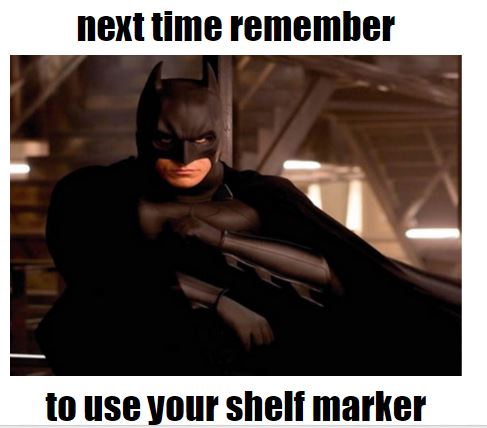
Technology Tues: Library Memes

I love collaborating (or in this case stealing) ideas from the librarians in my district.  One of my good friends and librarian at Canyon Ridge Elementary, Wendy Howk @whowk, sent an email in the summer to a few of her "tech-ie" friends" asking an innocent question about an idea she was working on.  She wanted to know if we knew of any kid appropriate meme generators because she wanted her 5th graders to make library rules memes for their orientation.  Our fabulous Terri Eichholz @terrieichholz, suggested that she download pictures that she wanted the students to use into google drive and work from there.  Well, before I could even reply, Wendy had already started created a folder in google drive with blank meme pictures,  I told her I loved the idea and would love to help in any way.  Well, then summer happened and neither of us really did much with it over the summer.

When we got back to school, I mentioned it to my 5th grade reading teachers and of course they loved it and signed up right away - yes, like the first week of school.  So over text messages one night, Wendy and I hammered and tested and retested and played and figured out how it might work through google classroom - which I had never really tried, nor have my teachers - that's right, I live on the edge.  Now, Wendy will say in her sweet way, that we "synergized" on this and that is how it came to fruition, but really it was all her idea and I just pushed her along because I needed to know how to do it to look good for my teachers.  

So anyway, here is how we created Library Rule Memes...

First, We(ndy) created a shared folder in google drive of a bunch of blank memes from a meme generator.

Then I made a google classroom for each of my 5th grade teachers.  


I made a template slide presentation with a title slide for each class and uploaded it into the assignments of the classroom.  

And then I uploaded the memes from my folder as "materials" on the "about" page of classroom.  (This was after I accidentally deleted the shared folder that Wendy had created with all the memes in it, had a huge panic attack and she talked me off a ledge and we figured out how to re-share the images - don't ya love those little "oopsies").

So once the students came for the lesson, I had a Slideshow about memes and some examples of just funny memes and other rule memes.  I also linked to the wikipedia definition of an Internet meme so I could point out to the students that they were intended to be humorous, shared and also the formatting of the meme.  Pointing out that this was not the time for fancy fonts and bright colors.  I also had on the slides how they should log into google classroom on the chromebooks and that is where the fun began.  

Luckily, I had the foresight to ask our instructional technology specialist, Laura Moore @learnmoorestuff, to be with me for at least the first class in case we had trouble.  It was the typical problems of student logins not working that she was able to troubleshoot, while I was explaining how to navigate through google classroom and actually make the meme.  

Each student was going to add a slide with a meme into the google slide presentation that I had assigned the class.  They each added a slide and put their name on it.  They were fascinated that they could all be working on the same presentation at the same time.  Once they had a slide, they looked through the pictures of the meme backgrounds and chose the one they wanted to use.  On the chromebook, they had to do a "two-finger puch" on the mouse pad in order to get the option to "copy".  They went back to their slide and CTRL-Vd to paste the image onto the slide.  They had to resize and then create text boxes with the correct formatting that we saw in wikipedia and added their text.  

And so here are their finished Library Memes.  Of course, these are the best of the best of 7 classess.  I wouldn't lead you on and say they were all this good.  I had kids who only got the picture pasted on and kids that totally missed the idea of "library" and just made a meme. But being that it was the first week of school and that we had never used google classroom before, I was pretty pleased with the results.  

I told the kids that I was going to be making laminated posters out of a "few" of the memes to hang on the wall in the library.  How do I choose?  I could use some help deciding!  Which ones do you like?